
I think this is one of the most practically useful things I’ve written in a while. Although once again not strictly crypto related, it is very much in line with my recent posts on AI agents and Claude Code that have been very popular.
Whenever I talk about AI in this Newsletter, it’s usually with reference to the big cloud AI tools like Claude, ChatGPT, Gemini, etc. The way these models work is that you type a prompt, it gets sent to a server somewhere, processed, and the response comes back. Simple. This is the same whether you’re using the website interface or doing deep coding in Claude Code using your Claude Max subscription.
But there’s a whole other world out there of opensource AI that runs entirely on your own computer. These are local LLMs, and in 2026, they’ve gotten really good.
The space is, unsurprisingly, moving fast. In the past two weeks alone, GLM-5.1 became the first open-source model to top Claude Opus 4.6 on a major coding benchmark. Kimi K2.6 then dropped earlier today and took the crown over from GLM. The tooling and models keep getting better, and the gap between cloud and local keeps getting smaller.
I’ve been learning about and experimenting with local models on my Mac Studio for the last week and have been (pleasantly) surprised with how capable they. Obviously not quite as good a Claude Opus 4.7 and other frontier models for the super complex stuff, but for a lot of what I do day to day, local models are genuinely useful. And free. And private. And always available.
Even if you keep your cloud subscriptions (I do), having a local model as a backup or for specific tasks is one of the best moves you can make.
It’s also just genuinely fascinating and interesting, and learning how to own and run your own models is a really good skill to learn in this day and age.
Here’s what we’ll be covering in today’s post:
Why run a local model?
Hardware: what do you need?
The software tools
Which model for which task?
Getting started
Connecting local models to AI agents
Closing thoughts
If you’re interested in leveling up your AI learning journey even more, then check out the new company I have launched alongside a couple of friends: The Stoa of AI.
We create video courses and have weekly live workshops and calls that show you practical ways to implement AI into your daily workflows.
We’re in early access mode with discounted pricing, check us out here: https://www.skool.com/thestoaofai
Why run a local model?
Five main reasons.
Privacy. Your prompts, files, and conversations stay on your machine. No third-party servers. For anyone working with sensitive data, proprietary code, or confidential documents, this is a huge deal. Not to mention those who just care about their personal privacy and don’t want Big AI spying on them (or worse, leaking their data to nefarious actors).
Cost. Once you have the hardware, inference is free. If you use AI heavily, local models will often pay for themselves given enough time. You can also repurpose old devices you might have at home to run local models.
No rate limits. Frontier models burn through credits fast. Having a local fallback is a godsend, as is having models running tasks that will never hit a rate limit (and don’t count against your existing rate limits). Most people use a one-size-fits-all approach to AI and use models like Opus and Sonnet for simple tasks where they’re totally overkill, and a much simpler, local model can do just as well.
Offline access. This is a cool one. Once you have a model downloaded locally, it will work without the internet. You can interact with your model on flights, in remote areas, and just have a backup way to access the entire knowledge of humankind on your own computer.
Control. You get to choose the models and can tweak their configurations to your heart’s content. You won’t be surprised by a change in Terms of Service and you won’t get randomly blocked for violating terms (or cause of an error on their end). You can have full control over your entire AI stack when you run a local model.
That last one hit home a few weeks ago when Anthropic blocked OpenClaw and other third party agent frameworks from using Claude Pro/Max subscriptions. People relying on that setup were suddenly stuck having to switch to another provider or paying API costs that could easily be in the $50/day range.
Local models don’t have this problem.
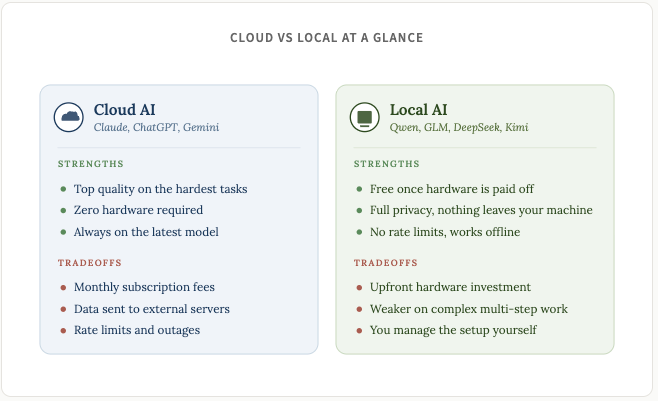
As I said at the top, local models won’t match frontier models for the hardest multi-step reasoning. But for simple and everyday coding, summarization, drafting, web scraping, research, and Q&A, they handle 70-80% of what I throw at them.
The right setup is both. Cloud for the hard stuff, local for everything else.
Hardware: what do you need?
Before we get into the hardware itself a quick detour on quantization. You'll see this term everywhere in the local LLM world and it affects every hardware decision you make, so worth understanding upfront.
Full precision models store each parameter as a 16-bit number. Quantization compresses that down to 8-bit, 4-bit, or lower. The model gets smaller and faster, at the cost of a tiny bit of accuracy. A music analogy that clicked for me: FLAC is technically better than a 320kbps MP3 file, but most people can't hear the difference (I certainly wouldn’t be able to).
4-bit quantization produces output nearly indistinguishable from full precision for most tasks. If you come across models with names like Q4_K_M or Q3_K_M just know that these are referring to the same model just with 4-bit or 3-bit quantization.
The rule of thumb: a Q4 quantized model requires roughly 0.6-0.7 GB of memory per billion parameters (I explained parameters in last week’s post).
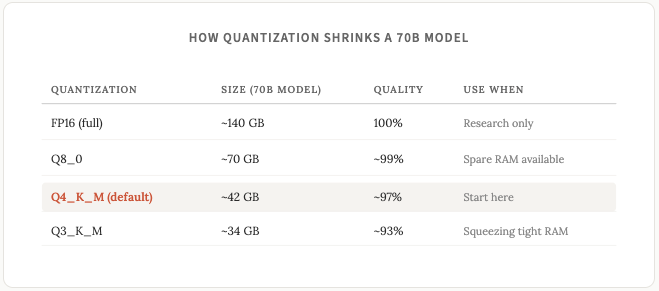
I would recommened that you stick with Q4_K_M models unless you have a specific reason not to.
Alright back to talking about hardware. The single most important number when it comes to running LLMs on hardware is available memory. This is VRAM on a PC or unified memory on a Mac. Everything else hardware related is secondary.
Here’s a handy chart for looking at the types of models you can run based on different hardware specs:
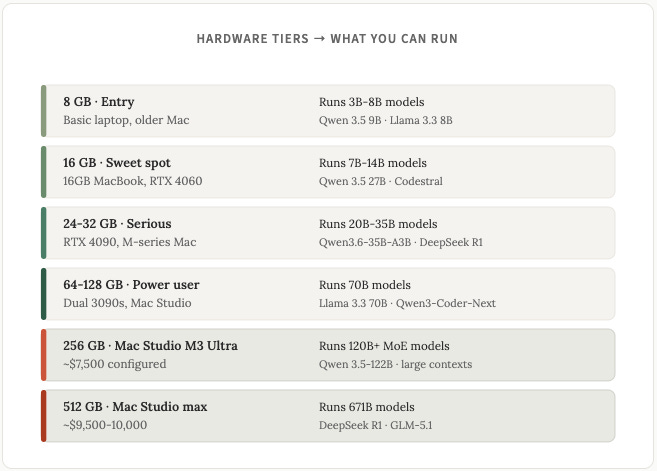
Macs have a unique advantage thanks to unified memory. The CPU, GPU, and Neural Engine share one memory pool. A Mac Studio with 512 GB of unified memory can actually run DeepSeek R1 at 671 billion parameters locally.
I’m personally running GLM5.1 at 744 billion parameters on my own Mac Studio (the Q3 version, which requires ~308GB of memory).
Mac vs PC: which should you buy?
This is a common question and the answer, like with most things, is “it depends”. Neither is universally better, they’re good at different things, depending on your situation / requirements.
For small-to-medium models (under 24 GB), a PC with an NVIDIA GPU is faster (a lot faster). An RTX 4090 runs an 8B model at 100-140 tokens per second. An M3 Max runs the same model at 40-60 tokens per second. If you care about snappy responses and you’re only running 7B-14B models, PC wins.
For large models (30B+), Macs win. Here’s why: NVIDIA consumer GPUs max out at 24 GB of VRAM (4090) or 32 GB (5090). Once your model exceeds that, the GPU has to shuttle data back and forth with system RAM over a slow connection, and performance suffers as a result. The Mac isn’t faster because Apple chips are faster, the Mac is faster because the whole model fits in memory at once.
Some other factors to take into account:
Power and noise. A Mac Studio pulls about 60W under full load. An RTX 4090 pulls 450W plus whatever the rest of the PC uses. If you’re running inference all day, the electricity costs will add up over time. Macs are also silent. PC workstations with 4090s are LOUD. My Mac Studio sits on my desk and I rarely hear a thing from it.
Price. A used RTX 3090 runs $700-900, but that’s just the GPU. You need a full PC around it which brings a realistic build to $1,500-2,000. On the Mac side, a Mac Mini M4 Pro with 24 GB unified memory starts at $1,399 as a complete machine. Macs also costs less to run daily thanks to the power difference mentioned above.
At the higher level, a Mac Studio M3 Ultra with 256 GB unified memory runs about $5,999. Max it out to 512 GB and you’re at $9,500-10,000. But at that high end, there’s no comparable PC option either. A PC build that could run 671B parameter models needs multiple professional GPUs and costs $20,000+.
My recommendation, based on your situation:
If you’re on a tight budget and already have a PC: Drop in a used RTX 3090. Best value per GB of VRAM in 2026.
If you want a complete machine under $1,500 and mostly run 7B-14B models: Mac Mini M4 Pro with 24 GB ($1,399). Quiet, efficient, no assembly required.
If you want the fastest possible responses on small-to-medium models: Build a PC with an RTX 4090 or 5090. Around $2,500-3,500 total.
If you want to run 30B+ models or you want a quiet always-on machine: Mac Mini M4 Pro with 48-64 GB ($1,999-2,199) or Mac Studio with 64-128 GB ($2,400-4,500).
If you want to run the biggest open-source models (GLM-5.1, Kimi K2.6, DeepSeek R1 at full 671B) without a rack of professional GPUs: Mac Studio with 256 GB or 512 GB is the only consumer option that makes sense. Around $6,000-10,000.
What about the laptop you already own?
One thing to know before you go out and spend money is that any M1 MacBook or newer with at least 8 GB of memory can run a small local model. An M1 MacBook Air with 16 GB runs 7B models at 15-25 tokens per second, and if you have a MacBook with even more memory, you can run even more models.
These aren’t going to be anything fancy, but they can still be genuinely good for simple/basic tasks, and more importantly, you can at least get a feel for how local models work before doling out extra cash.
The Software tools
Hardware is the first step, but once you have the hardware, you’ll need some tools to manage and run the models on your own devices. Here are the main options.
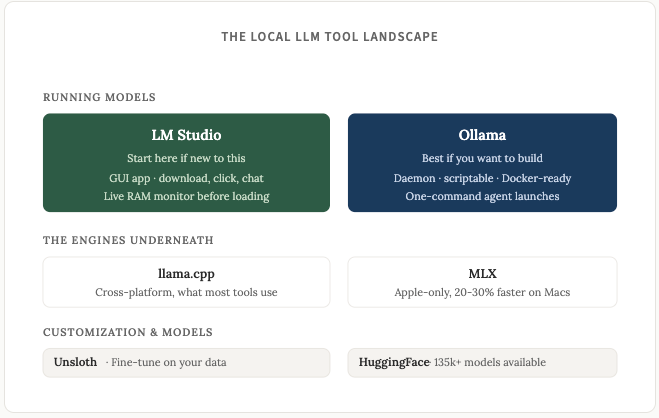
LM Studio is the right starting point if you’re new to this. It’s a full desktop app with a clean and easy to use interfact. You download the installer, browse the built-in HuggingFace model library, click the one you want, and start chatting. Zero terminal commands required.
It has a live RAM monitor that tells you whether your machine can run a model before you commit to the download and will recommend the best models for you to download based on your hardware.
It also exposes an OpenAI-compatible API so you can connect it to scripts and agents if you want to (ie you can run Openclaw or Hermes agents on your local models).
Ollama is an overall better choice if you want to build things with local models, but it requires being comfortable with the terminal / command line interface (CLI). A few of the advantages of Ollama over LM Studio:
It runs as an always-on background daemon. Install it once and it’s just there, listening on port 11434. LM Studio is a desktop app. You have to open it and flip the “Start Server” toggle every time you want API access. For agents, cron jobs, or anything that needs local AI available 24/7, Ollama is better/cleaner.
It’s fully open source (MIT license). LM Studio is closed source and their free tier doesn’t cover commercial use. If you’re building a product or want transparency over what’s running on your machine, Ollama is the safer pick.
Lighter memory footprint. Ollama is minimal. LM Studio is an Electron app and uses 300MB-1GB of RAM just for the GUI layer, before you’ve even loaded a model.
Ollama has the same API compatibility as LM Studio.
Ollama does have a native desktop app and it’s functional, but it’s minimal compared to LM Studio. There’s no live RAM monitor, no visual parameter controls, no side-by-side model comparison, no HuggingFace browser. It’s fine for quick chats, but not where Ollama shines. If you want a polished GUI, stick with LM Studio. If you want headless/scripting/agents, use Ollama. Or, an even better option…
You can install both! They don’t conflict, and that’s my recommendation. I’ve got LM Studio for quickly testing new models, and Ollama for anything I want to integrate into a workflow. If I had to pick one: LM Studio for a non-developer just starting out, Ollama for anyone planning to connect local models to OpenClaw, Hermes, or their own scripts.
Some more tools to know about:
Unsloth is for fine tuning models on your own data, which is a whole other very cool possibility for local models. The new Unsloth Studio released in March lets you train a model on your docs or writing style. I want to fine tune a model on all of my newsletters (or X posts) at some point and see how the model does compared to how frontier models are at writing in my own tone of voice.
HuggingFace is the repository where models live. Think of it as GitHub for AI, you don’t really need to interact directly with it but when you’re on Local LM or Ollama and you’re “downlading a model”, just know that you’re probably downlading it from HuggingFace.
llama.cpp and MLX are the engines underneath. Both Ollama and LM Studio use one or the other for inference. Most people never need to think about them.
Which model for which task?
This section literally went out of date twice while I was writing this letter. What follows is my take as of April 21, 2026. Half of this will probably be superseded in three months, if not sooner. Kimi K2.6 literally came out hours ago and I haven’t had a chance to try it myself yet, but I have used GLM-5.1 and it was probably the best choice before Kimi K2.6.
A few things to keep in mind before I share a comparison chart. The frontier open weight models (Kimi K2.6, GLM-5.1) are better than the smaller ones at almost everything. That’s the nature of bigger models with more parameters. But they need serious hardware to run locally, so for tasks that don’t need deep reasoning, a smaller model does the job at a fraction of the cost and latency. The practical question you should ask yourself is not “what’s the best model for this task” but “what’s the smallest model that handles this task well enough.”
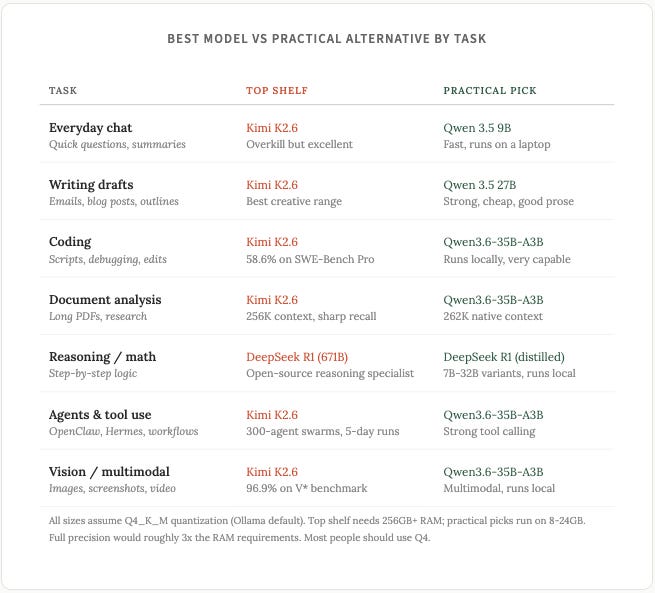
Quick aside on benchmarks. I'll reference SWE-Bench Pro a few times in this post. It's the benchmark that matters most for coding. Instead of testing whether a model can write an isolated function, SWE-Bench Pro gives the model a real GitHub issue from an actual open-source project and asks it to fix it. The model has to read the codebase, understand the bug, write the fix, and submit code that passes the existing tests. A score of 50% means the model solved half the bugs thrown at it.
For context, Claude Opus 4.6 scores 53.4%. The newly released Opus 4.7 scores a whopping 64.3%. Anything in the 55-60% range is generally considered frontier, but that number is obviously constantly changing as frontier models get better.
On the top shelf for coding, two open-weight models stand out as of today.
Kimi K2.6 from Moonshot AI is the new king of the open-source coding world. It came out today. It is purpose built for long and complex coding tasks. Where other models start losing coherence after an hour or two, K2.6 has demonstrated 5 day continuous execution runs on real engineering tasks.
It can also orchestrate 300 sub-agents in parallel (wtf), which means you can throw something like “refactor this entire monorepo” at it and it’ll decompose the job across hundreds of specialized workers. It beats Claude Opus 4.6 on SWE-Bench Pro (58.6% vs 53.4%). If you’re building anything agentic or doing heavy codebase work, this is the best local model at the moment (but again.. this could all change by literally tomorrow lol).
GLM-5.1 from Z.ai is the older option (April 7, which is crazy to consider it as the “older option”), but still close on coding quality. It scored 58.4% on SWE-Bench Pro, so only sliiiightly worse than K2.6. Another great pick if you want frontier coding but don’t have the hardware to run the Kimi model.
On the practical side, Qwen3.6-35B-A3B (released April 16) will hit the sweet spot for most people. The MoE architecture means only 3B parameters are active per token even though the model is 35B total, which means it runs fast on a 24 GB machine. It handles images and video, not just text, and it has a context window that goes up to 1M tokens so you can feed it entire codebases or long documents.
It’s good at everyday coding, writing drafts, summarization, and agent workflows.
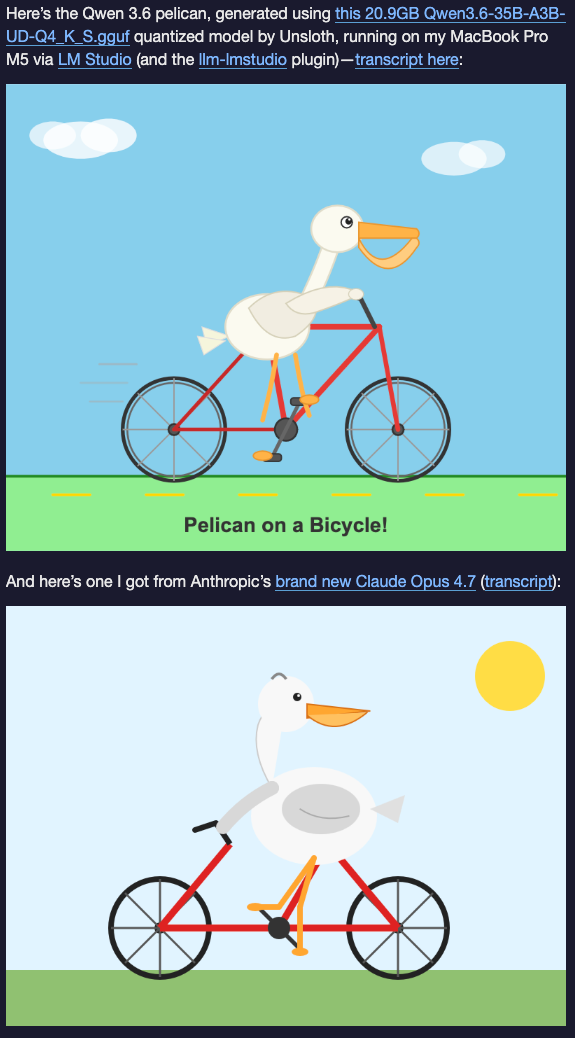
This is random but someone tested it on their laptop against Claude Opus 4.7 the day both were released, and the local model drew a better pelican riding a bicycle (very random and silly example but what’s life without a little whimy):
For smaller hardware, Qwen 3.5 9B is the practical option and runs fine on an 8 GB MacBook. It’s not going to handle complex multi file reasoning, but for some daily tasks (rewriting emails, summarizing articles, quick Q&A), it’s remarkably capable.
Getting started
If you want to try running your own local models, here are some instructions to get started for both LM Studioo and Ollama.
LM Studio:
Download LM Studio from lmstudio.ai.
Install it.
Open the app.
Click “Discover” and search for a model. The live RAM monitor tells you whether it will run on your machine.
Click download.
Click “Load model” when it’s done, and you’re off to the races. You can chat with the model directly in LM studio, or connect it to an agent like openclaw/hermes (i’ll explain how in the next section).
Ollama:
Install Ollama from ollama.com (one-line installer for Mac and Linux).
Then head to ollama.com/library or huggingface.co to browse models.
Every model listing should give you the exact command to run it. HuggingFace has a wider selection and shows you the file size so you can check it against your RAM before downloading.
Once you’ve found your model, run it in the terminal, it should look like this:
ollama run qwen3.5:9bThe first time you run a command like this it’ll download the model, then after that it’ll load the model from your hard drive. Once it’s downloaded/loaded, you can start talking to it immediately from the terminal.
It’s surpsingly simple to get up and running with local models. The whole setup from start to finish doesn’t take long, usually the longest part is downloading the model itself (a few GB to tens/hundreds of GB depending on the model).
This is literally all you have to do to have local LLMs running entirely on your own devices, and I recommend everyone with the hardware to at least give this a shot with some of the smallest models.
Connecting local models to AI agents
This is where things get interesting. Running a local chatbot is useful and cool and all that, but connecting a local model to an agent framework (Openclaw or Hermes) is the real unlock.
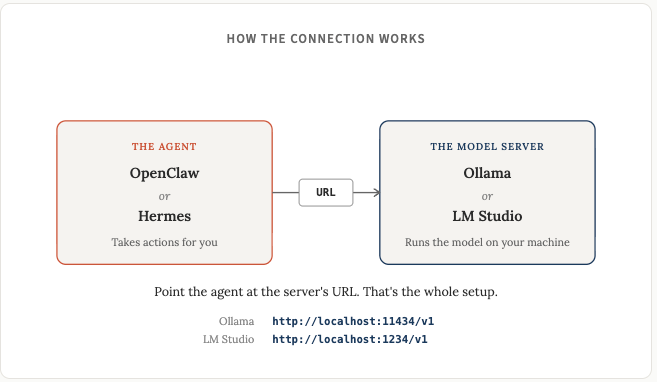
OpenClaw: Install OpenClaw, then in Settings > Config (or openclaw.json) add a custom provider pointing at http://localhost:11434/v1 for Ollama or http://localhost:1234/v1 for LM Studio. Set the API type to “openai-completions” and give your model a name that matches what’s loaded.
Hermes Agent: Install Hermes, then run hermes model to open the setup wizard. Choose “Custom endpoint”, enter your local URL (same as above: Ollama is http://localhost:11434/v1, LM Studio is http://localhost:1234/v1), and pick the model you’ve loaded. Switch models later with /model in chat.
Both Ollama and LM Studio expose OpenAI-compatible APIs, and both OpenClaw and Hermes speak that format, so it’s all pretty simple at the end of the day. Once you get it figured out once, you’ll find it very easy to try new models.
Closing thoughts
A lot of content about local LLMs out there tends to overhype things. While I don’t think everyone has to be using local models, and I very much understand the limitations of these models, I do think everyone passionate about AI would benefit themselves greatly by taking a day or two to tinker around here.
A local model is not going to replace Claude Opus 4.7 for complex multi-step reasoning. It’s not going to write content as well as frontier cloud models. It’s not going to debug a gnarly multi-file codebase as reliably.
What it will do is give you a private, free, always-available AI assistant that handles the majority of basic tasks that you throw at it, and, apparently, do a better job of creating an image of a pelican on a bicycle, sometimes?
And for a lot of people, that’s more than enough.
The quality curve is obviously real, and not all local models are created equal. Going from 8B to 14B is a noticeable jump. 14B to 32B is another. If you have the hardware for Kimi K2.6 or GLM-5.1 on a 512 GB Mac Studio, you’re running a model that beats Claude Opus 4.6 on SWE-Bench Pro. For normal hardware, Qwen3.6-35B-A3B on a 24-32 GB setup is the sweet spot in April 2026. You get near frontier quality on a standard machine.
The best overall approach I recommend for everyone is cloud for your hardest tasks, local for everything else (or for things that must be private). You don’t have to pick one or the other.
The local LLM ecosystem in April 2026 is mature. The last couple of months has seem pretty incredible leaps in quality, and if this trend continues, it’s gonna be absolutely mindblowing the AI power that us mere mortals can wield at home.
Honestly, these models are probably already better than you’d think. And having an AI that runs on your own machine, answering your questions with (near) zero running costs and zero data leakage, is yet one more of those things these days that makes me think of these fine words from one of sci-fi’s greatest writers:

Disclaimer: The content covered in this newsletter is not to be considered as investment advice. I’m not a financial adviser. These are only my own opinions and ideas. You should always consult with a professional/licensed financial adviser before trading or investing in any cryptocurrency related product. Some of the links shared may be referral links.